Showing posts with label Blogger-Widget. Show all posts

Friday, May 4, 2012

Add Multiple Page Gadgets

How to Add Multiple Page Gadgets to Your Blogger Blog

A Page Gadget is just a navigation bar. If you have added one already you have found out that you cannot add a second one. In this post I am going to show you how to get around that.
Note: This tweak will still not let you add more than 10 static pages.
How to add multiple page gadgets to your Blogger blog
1. Add a Page Gadget to your blog via Page Elements.
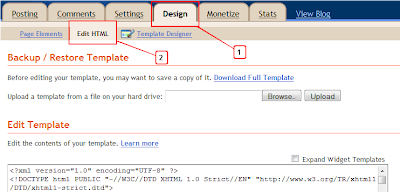
2. Go to Edit HTML.
3. Search (Ctrl+F) for  PageList1. Once you have located that in the HTML code of your template you might see something like this:
<b:widget id='PageList1' locked='false' title='' type='PageList'/>
4. Now copy the line you see above and insert it directly below it. Then change PageList1 to PageList2.
Example:
<b:section class='tabs' id='crosscol' maxwidgets='1' showaddelement='yes'> 
<b:widget id='PageList1' locked='false' title='' type='PageList'/> 
<b:widget id='
PageList2' locked='false' title='' type='PageList'/>
5. Now all you need to so is save and go back to Page Elements. Drag the second Page Gadget anyplace you want.
Good luck!

Wednesday, April 4, 2012

Calculator for Blogger

A widget that display a calculator. All the basic operations are supported: additions, subtractions, multiplications and divisions.

Calculator


Blogger installation
To add the Calculator widget to Blogger, use the following button. If you aren’t already logged in, you will be prompted to log in to Blogger and select one of your blogs.

    Generic website installation (Javascript)
  • Copy the code below and paste it into the code of your blog / website.


Frequently Asked Questions

How can I help?
If you find any bugs with the plugin or if you have any suggestions, please leave a comment to let me know.

Be Sociable, Share!

Stylish JQuery Image Slideshow

Simple Stylish JQuery Image Slideshow For Blogger

Today i want to bring you another neat Image slideshow for Blogger users.The slide show is simple to add to your blog, looks great and has some neat options.The width can be changed to the size of the area you want it placed on your blog, captions can also be added to the images.Once on your blog it will auto scroll through your images and also has controls for the user to manual scroll.This will look great on Photography Blogs, Business Blogs or for anyone looking to display some cool pics.

The original version comes from Basic jQuery Slider, i have made some changes to make it work better with blogger.Check out the demo below, i have the demo slider spanning the full width of the blog but as i said it can be changed.

View Demo Button

Add The Easy Image Slider To Your Blog


Remember Always Back Up Your Template Before You Make Changes - How To Back Up A Blogger Template 

Step 1. In Your Blogger Dashboard Click Design > Edit Html 

Design Edit Html Blogger

Step 2. Find the following piece of code in your blogs Html : (Click Ctrl and F for a search bar to help find the code - How To Find Code In Blogger Template Template) 

]]></b:skin>

Step 3. Copy and Paste the following code Directly Above / Before ]]></b:skin>

/* Start Slider Code From http://www.spiceupyourblog.com/ */

ul.bjqs{position:relative; list-style:none;padding:0;margin:0;overflow:hidden; display:none;}
li.bjqs-slide{display:none;position:absolute;}

ul.bjqs-controls{list-style:none;margin:0;padding:0;z-index:9999;max-width:100%;}

ol.bjqs-markers{list-style:none;margin:0;padding:0;z-index:9999;}
ol.bjqs-markers li{float:left;}

p.bjqs-caption{display:block;max-width:96%;margin:0;padding:2%;position:absolute;bottom:0;background:rgba(0,0,0,0.7);color:#fff;-moz-border-radius: 6px;-webkit-border-radius: 6px;-moz-box-shadow: 4px 4px 4px #dddddd;-webkit-box-shadow: 4px 4px 4px #dddddd;}

}
/* End Slider Code From http://www.spiceupyourblog.com/ */

Step 4. Find the following piece of code in your blogs Html : (Click Ctrl and F for a search bar to help find the code - How To Find Code In Blogger Template Template) 

</head>

Step 5. Now Copy And Paste This Code Directly Above / Before </head>

<!-- Start Slider Code From http://www.spiceupyourblog.com/ -->
<script src='http://code.jquery.com/jquery-1.6.1.min.js' type='text/javascript'/>
<script src='http://yourjavascript.com/9921010228/basic-jquery-slider.min.js' type='text/javascript'/>
<script type='text/javascript'>
$(document).ready(function(){
$(&#39;#my-slideshow&#39;).bjqs({
&#39;width&#39; : 940,
&#39;height&#39; : 340,
&#39;showMarkers&#39; : true,
&#39;showControls&#39; : true,
&#39;centerMarkers&#39; : false
});
});
</script>
<!-- End Slider Code From http://www.spiceupyourblog.com/ -->

Important - The line of code in yellow is the jQuery script, if you previously added jQuery to your template leave it out.

The two lines in red and the width and height.The width is currently 940px and the height is 340px change them as needed.Remember your images will need to be the same size as the width and height you choose here.

Step 6. Save your template.

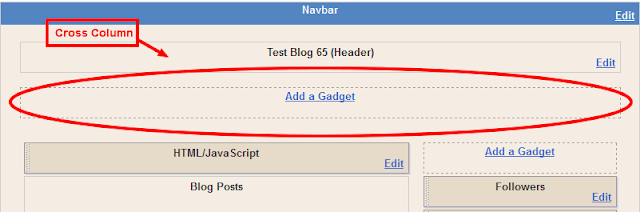
That's the Css and Scripts added now you need to add the html.To have the slider span across your full blog as in the demo you need a gadget area called Cross Column and can be seen in the image below.If your blog does not have this section available you can see how to enable it here - Add Full Width Cross Column Gadgets To Blogger.

Adding HTML For The Slides


The HTML for the slides goes in a Html/Javascript gadget in the cross column section as shown above.

Below is the html for the slider in the demo.There is no really easy way to explain it so you will need to take a minute to figure out the code.I have the the image URLs is in green and the caption (Optional) is in yellow.Each slide works in the same way, you can just copy and paste this code and replace the Image URL and captions.To add extra slides you can repeat one of the sections and once again add your URL, Image and Caption.

<div id="my-slideshow">
<ul class="bjqs">
<li><img title="This is a caption." src="https://blogger.googleusercontent.com/img/b/R29vZ2xl/AVvXsEhUCvqzx7YepBFO3fcRhdRzclxvz4SQ1MbO6ByREMw4yyOPKuceuQY9XNgI-go9ksiEWXPN0-QqMbbSKEIB7rDqQIa6IeHHY-ngD4jiEOFhvly0xCLOpV_3iIfbxZraeRyUcJ17yFqq8opY/s1600/slider-image1.jpg"/></li>

<li><img title="This is a another caption." src="https://blogger.googleusercontent.com/img/b/R29vZ2xl/AVvXsEj5gzJVwCgUxKj-6h01YQMQtIASsTYVAFkmUOzhyphenhypheneW60WPK7Kz7Cpyxq_YkZV7zTKLr1yJxt_Mi8KmsGqJydWx3rOPIHTftYD06WAv5oE-lrqU_4tcOCQM9mi3Bag2SJZRXjiV1PJrehr8s/s1600/slider-image2.jpg"/></li>

<li><img title="This is a another longer caption." src="https://blogger.googleusercontent.com/img/b/R29vZ2xl/AVvXsEiZurqgDHs9X4LMUkYLmmnJRf3a4pE2wO0Xl9XvoRZaWdrx9CfRW9YCcO0DJMHTtUJkWfd2hewZ0W4ZyE6TeuB9BfjyTOahfX5wHgiUr50pd_2YV6Us1X4K3oG2FTK6Pdk6l7dr2SHKkxz8/s1600/slider-image-3.jpg"/></li>

<li><img title="This is a another much longer caption." src="https://blogger.googleusercontent.com/img/b/R29vZ2xl/AVvXsEhyNB0V34NZliL5tYeJaOAEfeO-Bl-v9U6zEMVatHMpMw6QpNMU_jinSvKQnuZOz0wg1tVslxgr2uPA8JJj-VFLxULlFbv3N7r8OwKpTOPSZoTouG60KcvzVAbUZYdhNp4DIYYJWWXRpWkk/s1600/slider-image4.jpg"/></li>

<li><img title="This is a another longer caption that can be the lenght of the image or even longer onto the next line." src="https://blogger.googleusercontent.com/img/b/R29vZ2xl/AVvXsEi2Xb6jBUqH0w6gOJXStFWQF-OKgrTJmJ-soizpMIDt4Lx7-qMTR5yPtVG37yS2mgIQR9L1nyuid5GGA1-FsBof9bFR6hDJAvtHED2qM5aiqs69fxaKF_3ZlSCs6j_M4k08npPE92T6SiiC/s1600/slider-image5.jpg"/></li>
</ul>
</div>

That's it, a bit of work needed hopefully you could follow it and have a great looking jQuery Image Slideshow.You can find more Featured Sliders In Our jQuery Posts.

Egg Social Bookmarking Gadget

Cool Anchored Position Slide Accessible Egg Amusing Bookmarking Apparatus For Blogger

A few weeks ago i appear "Add An Awesome Anchored Position Slide Accessible Affection Bookmarking Apparatus To Blogger".In this column we accept the aforementioned amusing bookmarking apparatus but this time it will not be shaped as a affection but instead an ovel egg shape.The allotment egg sits in the basal bend of your blog and charcoal anchored as the clairvoyant scrolls the page.On hover the egg slides accessible to acknowledge bookmarking buttons for your readers to allotment posts on Facebook, Twitter, Google +, Blogger, LinkedIn, Stumble Upon, Email and the Allotment This Icon Offers hundreds added bookmarking choices.This is a abundant apparatus to get the absorption of your readers and accept them bookmarking your posts.I accept the tutorial to add the apparatus to your Blogger blog beneath but aboriginal analysis out the screenshot and reside demo.

Add The Allotment This Egg To Your Blog
Remember Always Back Up Your Template Before You Make Changes - How To Back Up A Blogger Template

Step 1. In The New Blogger Dashboard Click The Drop Down Menu For Your blog And Accept > Template > Under your blogs screenshot accept "Edit Html" > Then Proceed, as apparent in the video below.

Step 2. Find the following piece of code in your blogs Html : (Click Ctrl and F for a search bar to help find the code - How To Find Code In Blogger Template Template) 
</head>

Step 3. Copy and Paste the following code Directly Above / Before </head>

<!-- Start Heart Bookmarking Gadget Code From http://www.spiceupyourblog.com/ --><script src='http://w.sharethis.com/gallery/shareegg/shareegg.js' type='text/javascript'/><script src='http://w.sharethis.com/button/buttons.js' type='text/javascript'/><script type='text/javascript'>stLight.options({publisher: &quot;bea50586-2b9f-448d-947a-01385f28e305&quot;, onhover:false}); </script><link href='http://w.sharethis.com/gallery/shareegg/shareegg.css' media='screen' rel='stylesheet' type='text/css'/><!-- End Heart Bookmarking Gadget Code From http://www.spiceupyourblog.com/ -->

Step 4. Find the following piece of code in your blogs Html : (Click Ctrl and F for a search bar to help find the code - How To Find Code In Blogger Template Template) 

</body>

Step 5. Now Copy And Paste This Code Directly Above / Before </body>

<!-- Start Heart Share Code From http://www.spiceupyourblog.com/ --><div style='position: fixed; bottom: 2%; left: 2%;'><div class='shareEgg' id='shareThisShareEgg'/></div><script type='text/javascript'>stlib.shareEgg.createEgg(&#39;shareThisShareEgg&#39;, [&#39;facebook&#39;,&#39;twitter&#39;,&#39;googleplus&#39;,&#39;linkedin&#39;,&#39;blogger&#39;,&#39;stumbleupon&#39;,&#39;sharethis&#39;], {title:&#39; <data:blog.pageTitle/>&#39;,url:&#39;<data:blog.url/>&#39;,theme:&#39;shareegg&#39;});</script><a href="http://www.spiceupyourblog.com/">Blogger Wordpress Gadgets</a><!-- End Heart Share Code From http://www.spiceupyourblog.com/ -->

Important, Move The Position Of The Gadget :

The Gadget is currently set to be in the bottom right corner of your blog but you can easily change this.In yellow above you can see bottom: 2%; left: 2%;.You can change Bottom to top for it to be at the top of the page and left to right for it to be on the right of the page.You can also change the percentages to have it further from the bottom/top and left/right.

Step 6. Save Your Template.

That's it the gadget has been added to your blog.Make sure to check out more of our Blog Gadgets and Social Bookmarking Gadgets.

Tuesday, March 6, 2012

Google Buzz Share Count Button

Add Google Buzz Share Count Button On Blogger / Blogspot

Create Mobile Site
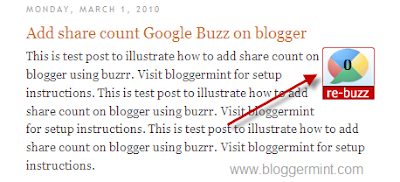
Google Buzz share count button can be seen in Mashable, but you can opt the same on your Blogger / Blogspot blogs. Its been three weeks after the launch of Google Buzz, Buzrr a new website, which exactly works like Tweetmeme for Twitter came out with exciting features. In addition to that Buzrr has released a share count button for Google Buzz, which can be added to blogs and websites. So here is our tutorial to add Google Buzz share count button for Blogger / Blogspot blogs.
Google buzz share count button for blogger

Step 1: Navigate to Blogger dashboard > Layout > Edit HTML and Expand Widget Template. Now search for <div class=’post-header-line-1′/> or <data:post.body/> soon after this code place the below code
<div style='float:right; margin-right:10px;'>
<script src='http://www.buzrr.com/button.js'></script>
</div>
Step 2: Save your template, you are all done. Now your blogger blog has share count Google Buzz plugin.
Update: ReBuzzthis has released a new share count button, with compact and large button. So to make this change, just replace the script
<script src="http://www.buzrr.com/button.js">
With
<script src="http://rebuzzthis.com/buttons/button_105.js" type="text/javascript"></script>
If you want a compact version just use this code
<script src="http://rebuzzthis.com/buttons/button_106.js" type="text/javascript"></script>
March 1, 2010. This entry was posted in Blogger and tagged . Bookmark the permalink.

Thursday, December 1, 2011

Add Falling Snowflakes

Add Falling Snowflakes / colored stars / Flowers / Leaves / stars / butterfly / heart to Your Blog

Perhaps by Christmas cheer to your blog once covered (colored) stars?

You Might Want to decorate your Christmas blog with falling stars?


Our guide on styles of web design continues: new round, new tutorial… this time I'll explain how to Add Falling Snowflakes / colored stars / Flowers / Leaves / stars / butterfly / heart to Your Blog.Its much simple than any other trick found on the net because you just have to add a simple single code to your blogger blogspot blog.i've tested this effect on internet explorer, mozzilla firefox & many other web browsers. Adding a Snowflakes / colored stars / Flowers / Leaves / stars / butterfly / heart posts widget is very easy.So, let's see how to install this cool widget in your blog..


Instructions To Follow:
STEP #1
Log in to Blogger, go to Design ->


Add a Gadget of HTML/JavaScript type.


Falling Colored Stars : 

<script type="text/javascript" src="https://sites.google.com/site/bdlab12/bdlab-blogspot-com/ColoredStars.txt" />
</script>


Falling fire Stars : 

<script type="text/javascript" src="https://sites.google.com/site/bdlab12/bdlab-blogspot-com/fireStars.txt" />
</script>


Falling Stars : 

<script type="text/javascript" src="https://sites.google.com/site/bdlab12/bdlab-blogspot-com/Stars.txt" />
</script>


Falling snow :  Falling SnowFlakes

<script type="text/javascript" src="https://sites.google.com/site/bdlab12/bdlab-blogspot-com/snow.txt" />
</script>


Falling Snow flakes 1 : 

<script type="text/javascript" src="https://sites.google.com/site/bdlab12/bdlab-blogspot-com/Snowflakes1.txt" />
</script>


Falling Snow flakes 2 : 

<script type="text/javascript" src="https://sites.google.com/site/bdlab12/bdlab-blogspot-com/Snowflakes2.txt" />
</script>


Falling Snow flakes 3 : 

<script type="text/javascript" src="https://sites.google.com/site/bdlab12/bdlab-blogspot-com/Snowflakes3.txt" />
</script>


Falling Snow flakes 4 : 

<script type="text/javascript" src="https://sites.google.com/site/bdlab12/bdlab-blogspot-com/Snowflakes4.txt" />
</script>


Falling Snow flakes 5 : 

<script type="text/javascript" src="https://sites.google.com/site/bdlab12/bdlab-blogspot-com/Snowflakes5.txt" />
</script>


Falling Snow flakes 6 : 

<script type="text/javascript" src="https://sites.google.com/site/bdlab12/bdlab-blogspot-com/Snowflakes6.txt" />
</script>


Falling Leaves : 

<script type="text/javascript" src="https://sites.google.com/site/bdlab12/bdlab-blogspot-com/FallingLeaves.txt" />
</script>


Falling Green Leaf : 

<script type="text/javascript" src="https://sites.google.com/site/bdlab12/bdlab-blogspot-com/GreenLeaf.txt" />
</script>


Falling Yellow Leaf : 

<script type="text/javascript" src="https://sites.google.com/site/bdlab12/bdlab-blogspot-com/YellowLeaf.txt" />
</script>


Falling Greenish : 

<script type="text/javascript" src="https://sites.google.com/site/bdlab12/bdlab-blogspot-com/Greenish.txt" />
</script>


Falling Tree Leaf : 

<script type="text/javascript" src="https://sites.google.com/site/bdlab12/bdlab-blogspot-com/TreeLeaf.txt" />
</script>


Falling Heart 1 : 

<script type="text/javascript" src="https://sites.google.com/site/bdlab12/bdlab-blogspot-com/Heart1.txt" />
</script>


Falling Heart 2 : 

<script type="text/javascript" src="https://sites.google.com/site/bdlab12/bdlab-blogspot-com/Heart2.txt" />
</script>


Falling Heart 3 : 

<script type="text/javascript" src="https://sites.google.com/site/bdlab12/bdlab-blogspot-com/Heart3.txt" />
</script>


Falling Blue Heart : 

<script type="text/javascript" src="https://sites.google.com/site/bdlab12/bdlab-blogspot-com/BlueHeart.txt" />
</script>


Falling Red-1 Heart : 

<script type="text/javascript" src="https://sites.google.com/site/bdlab12/bdlab-blogspot-com/RedHeart.txt" />
</script>


Falling Heart 4 : 

<script type="text/javascript" src="https://sites.google.com/site/bdlab12/bdlab-blogspot-com/Heart4.txt" />
</script>


Falling Flower : 

<script type="text/javascript" src="https://sites.google.com/site/bdlab12/bdlab-blogspot-com/Flower.txt" />
</script>


Falling Love Heart : 

<script type="text/javascript" src="https://sites.google.com/site/bdlab12/bdlab-blogspot-com/LoveHeart.txt" />
</script>


Falling butterfly Orange 1 : 

<script type="text/javascript" src="https://sites.google.com/site/bdlab12/bdlab-blogspot-com/butterflyOrange.txt" />
</script>


Falling butterfly Pink 1 : 

<script type="text/javascript" src="https://sites.google.com/site/bdlab12/bdlab-blogspot-com/butterflyPink.txt" />
</script>


Falling butterfly Blue 1 : 

<script type="text/javascript" src="https://sites.google.com/site/bdlab12/bdlab-blogspot-com/butterflyBlue.txt" />
</script>


Falling butterfly Green 1 : 

<script type="text/javascript" src="https://sites.google.com/site/bdlab12/bdlab-blogspot-com/butterflyGreen.txt" />
</script>


Falling butterfly ani 1 : 

<script type="text/javascript" src="https://sites.google.com/site/bdlab12/bdlab-blogspot-com/butterfly-1-dance.txt" />
</script>


Falling Heart ani 1 : 

<script type="text/javascript" src="https://sites.google.com/site/bdlab12/bdlab-blogspot-com/LoveHeart-1-dance.txt" />
</script>


Falling Heart ani 2 : 

<script type="text/javascript" src="https://sites.google.com/site/bdlab12/bdlab-blogspot-com/LoveHeart-1-lights.txt" />
</script>


Falling red heart : 

<script type="text/javascript" src="https://sites.google.com/site/bdlab12/bdlab-blogspot-com/Fallingredheart.txt" />
</script>


Falling orange heart : 

<script type="text/javascript" src="https://sites.google.com/site/bdlab12/bdlab-blogspot-com/Fallingorangeheart.txt" />
</script>


Falling pink heart : 

<script type="text/javascript" src="https://sites.google.com/site/bdlab12/bdlab-blogspot-com/Fallingpinkheart.txt" />
</script>


Falling blue heart : 

<script type="text/javascript" src="https://sites.google.com/site/bdlab12/bdlab-blogspot-com/Fallingblueheart.txt" />
</script>


Falling purple heart : 

<script type="text/javascript" src="https://sites.google.com/site/bdlab12/bdlab-blogspot-com/Fallingpurpleheart.txt" />
</script>


Falling yellow heart : 

<script type="text/javascript" src="https://sites.google.com/site/bdlab12/bdlab-blogspot-com/Fallingyellowheart.txt" />
</script>


Falling objects-heart : 

<script type="text/javascript" src="https://sites.google.com/site/bdlab12/bdlab-blogspot-com/Fallingobjects-heart.txt" />
</script>


Falling hrt2b heart : 

<script type="text/javascript" src="https://sites.google.com/site/bdlab12/bdlab-blogspot-com/Fallinghrt2bheart.txt" />
</script>


Falling objects-snow : 

<script type="text/javascript" src="https://sites.google.com/site/bdlab12/bdlab-blogspot-com/Fallingobjects-snow.txt" />
</script>


Falling ani-ornament : 

<script type="text/javascript" src="https://sites.google.com/site/bdlab12/bdlab-blogspot-com/Fallingani-ornament.txt" />
</script>


Falling red star : 

<script type="text/javascript" src="https://sites.google.com/site/bdlab12/bdlab-blogspot-com/Fallingredstar.txt" />
</script>


Falling blue star : 

<script type="text/javascript" src="https://sites.google.com/site/bdlab12/bdlab-blogspot-com/Fallingbluestar.txt" />
</script>


Falling orange star : 

<script type="text/javascript" src="https://sites.google.com/site/bdlab12/bdlab-blogspot-com/Fallingorangestar.txt" />
</script>


Falling pink star : 

<script type="text/javascript" src="https://sites.google.com/site/bdlab12/bdlab-blogspot-com/Fallingpinkstar.txt" />
</script>


Falling blinking star : 

<script type="text/javascript" src="https://sites.google.com/site/bdlab12/bdlab-blogspot-com/Fallingblinkingstar.txt" />
</script>


Falling colored cross : 

<script type="text/javascript" src="https://sites.google.com/site/bdlab12/bdlab-blogspot-com/Fallingcoloredcross.txt" />
</script>


Falling colored flake : 

<script type="text/javascript" src="https://sites.google.com/site/bdlab12/bdlab-blogspot-com/Fallingcoloredflake.txt" />
</script>


Falling green butterfly : 

<script type="text/javascript" src="https://sites.google.com/site/bdlab12/bdlab-blogspot-com/Fallinggreenbutterfly.txt" />
</script>


Falling yellow butterfly : 

<script type="text/javascript" src="https://sites.google.com/site/bdlab12/bdlab-blogspot-com/Fallingyellowbutterfly.txt" />
</script>


Falling objects-fish : 

<script type="text/javascript" src="https://sites.google.com/site/bdlab12/bdlab-blogspot-com/Fallingobjects-fish.txt" />
</script>


Falling objects-bee : 

<script type="text/javascript" src="https://sites.google.com/site/bdlab12/bdlab-blogspot-com/Fallingobjects-bee.txt" />
</script>


Falling objects-drip : 

<script type="text/javascript" src="https://sites.google.com/site/bdlab12/bdlab-blogspot-com/Fallingobjects-drip.txt" />
</script>

Tag Cloud

More Details here
Blogger Widgets